
In today’s article we will explain how an operating system of Windows XP is installed or reinstalled and we will start with the reinstallation because it has some passages preceding the installation.
What do we need to restore Windows XP?
We need an optical unit (CD, DVD, combination), a CD with Windows XP, storage space for important data and a little patience.
First of all, make sure you save the data you need in a partition of the hard drive that will not be deleted, on another hard drive, on a memory or on a disc.
Now let’s go to the installation, enter the bios on the * priority of the start device * and we assure the optical unit is the second, after the hard drive, from the devices displayed on this page. If the optical unit is not displayed here, we select it with the keys and leave the bios save the settings.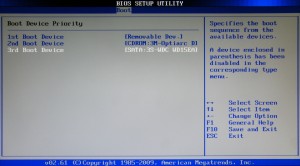
1. We begin to install Windows by introducing the CD into the optical unit, if the settings presented above are carried out correctly, the message of any key to be started by the CD must defend us … before inserting Windows. At this moment we press any key to perform the Windows settings.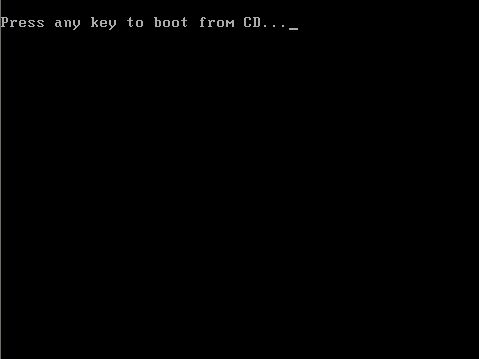
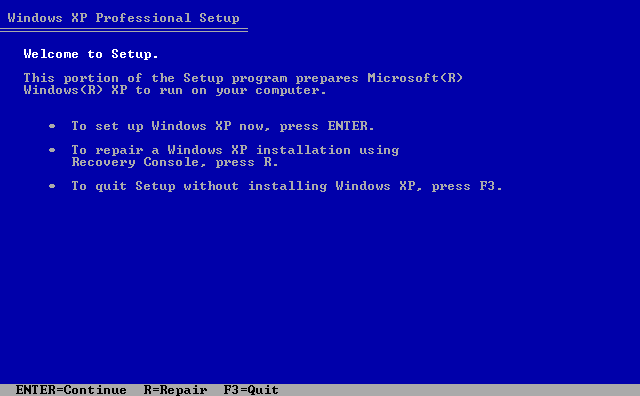
In the menu * Welcome to setup * I premist the Enter key to continue the installation.
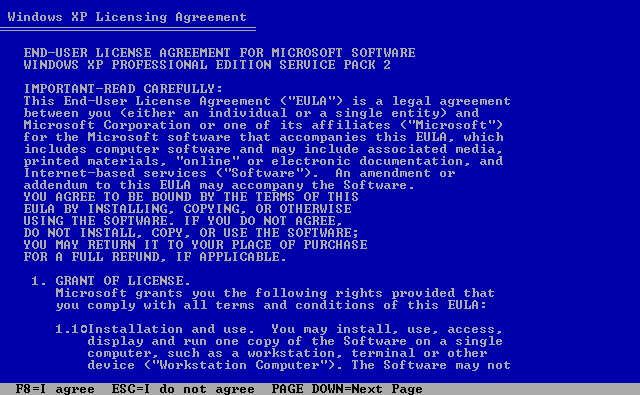
2. Press F8 to accept the terms and conditions imposed by Microsoft.
3
If you install Windows on an empty hard drive, go to passage 5.
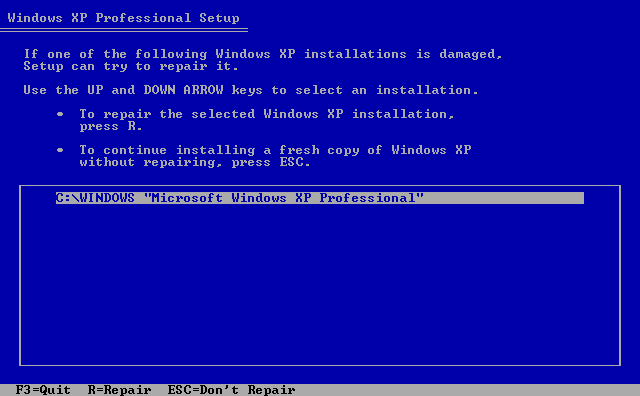
4. Now the Windows XP settings display the partition on which the previous windows are already installed.
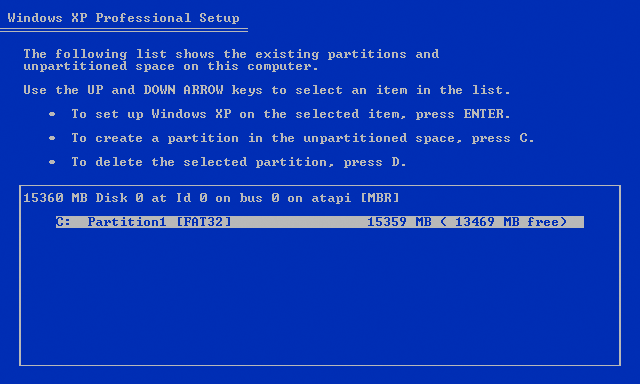
5. If you have more partitions and you want to change their skills, all data on these partitions will be deleted. Reduce partitions to desired dimensions and install Windows XP in the partition C:/, must have at least 10 GB so that the system operates in normal parameters.
If you have important data on other partitions and you want to keep it, continue to install without downsizing or changing them. Format only the partition C:/
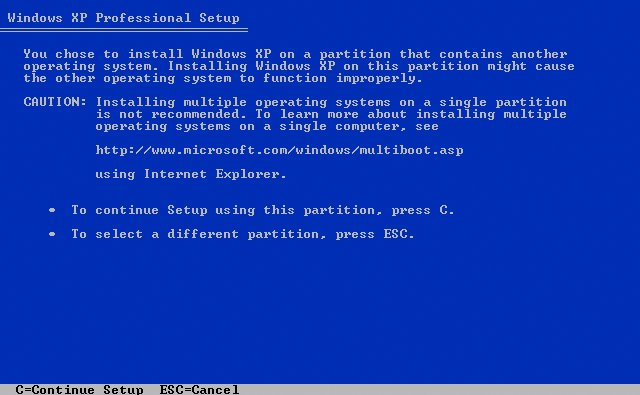
After pressing the Enter key, the settings will tell you that you have already installed an operating system, press the C key to continue. If you install Windows on an empty hard drive, go to passage 7.
6. In the Formatting menu select the NTFS file system and move forward
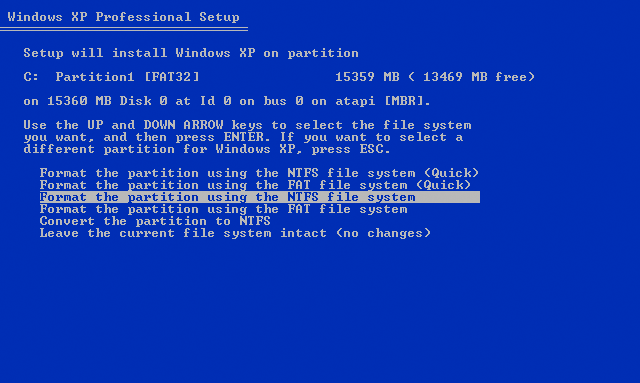
7. After selecting the format the partition using the NTFS file system, you will receive a notice message. Press the F key to go on.
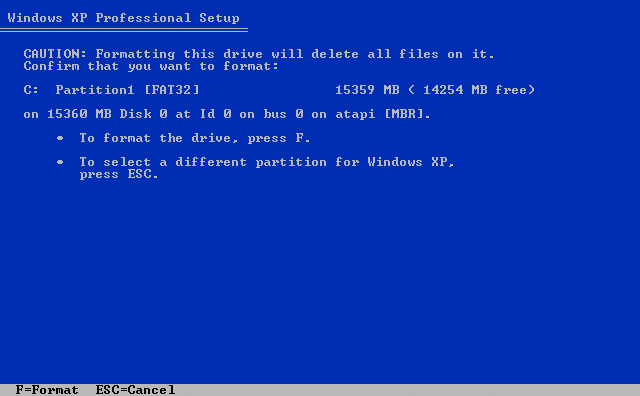
8
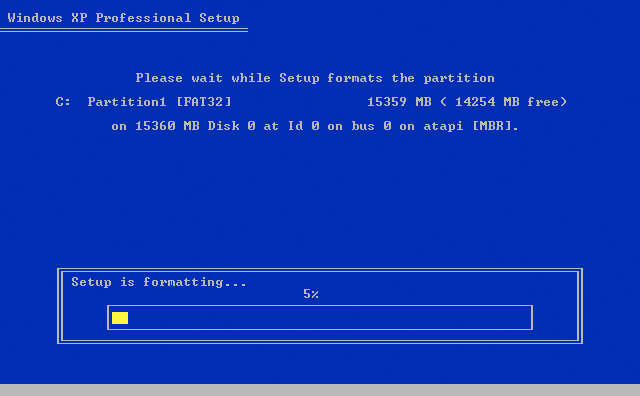
9. After formatting, Windows settings will start copying the necessary files and restarting the computer at their completion.
Careful! Do not interrupt this process in any form, the interruption of the installation process can lead to computer damage.
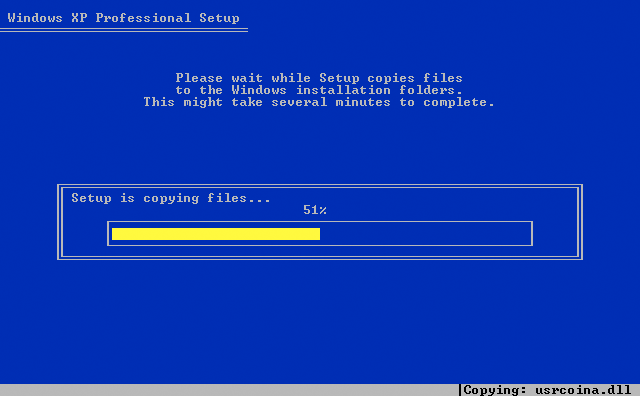
10. After restart, the computer will automatically start installing the operating system. The process lasts up to 60 minutes depending on the computer, do not stop installing the operating system.
During the process you have to stay close to the computer because you will have to select various options related to language, time zone, keyboard, license and several other settings.
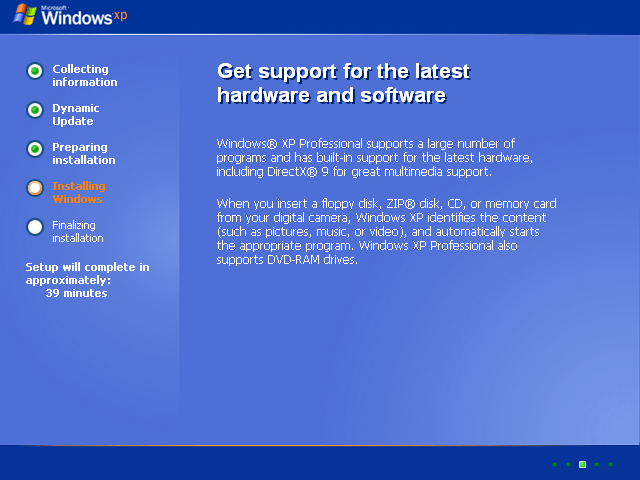
11. Set the language options and locations based on your preferences by pressing the costume button
12. After setting the language and the Region press the OK button and then the next good.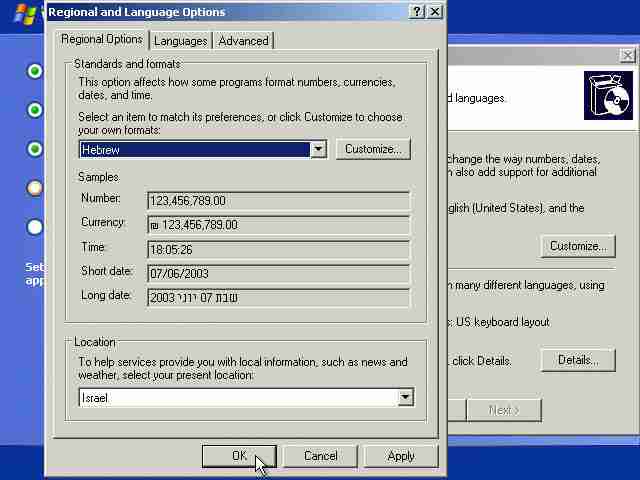
13. Choose a computer name and use it and then press the next button.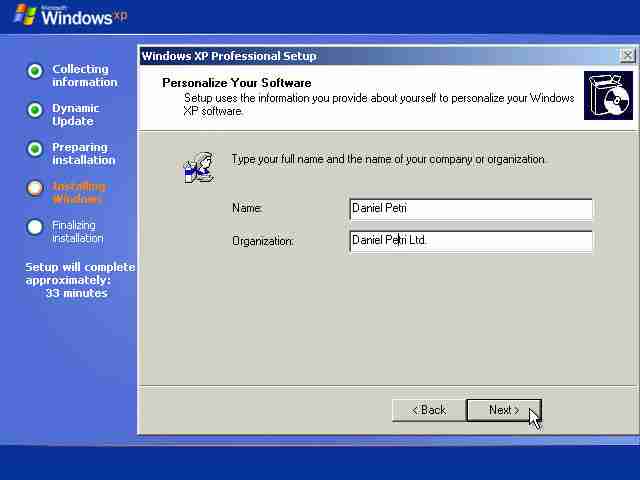
14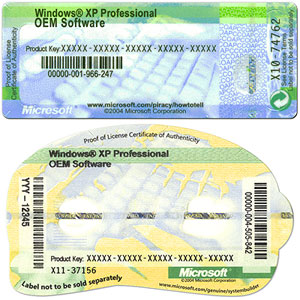
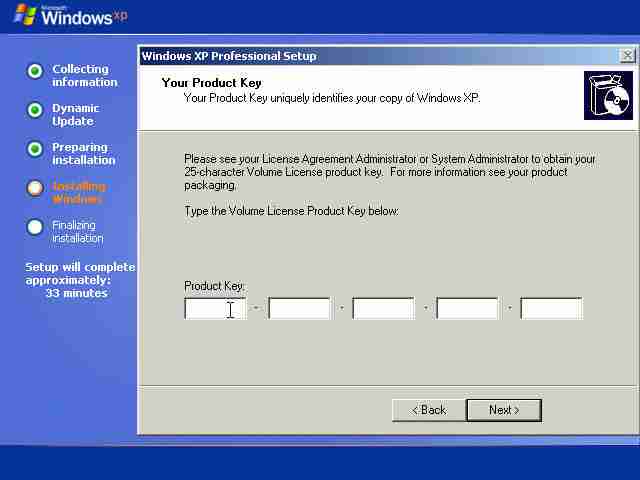
15. Choose a name for your computer and set an access pararal, the password is not mandatory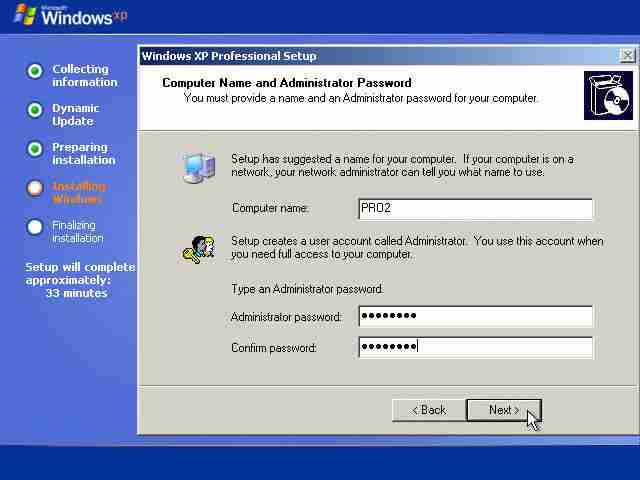
16. Sets the date, time and selects the time zone GMT+2: 00, this is the time zone for Romania.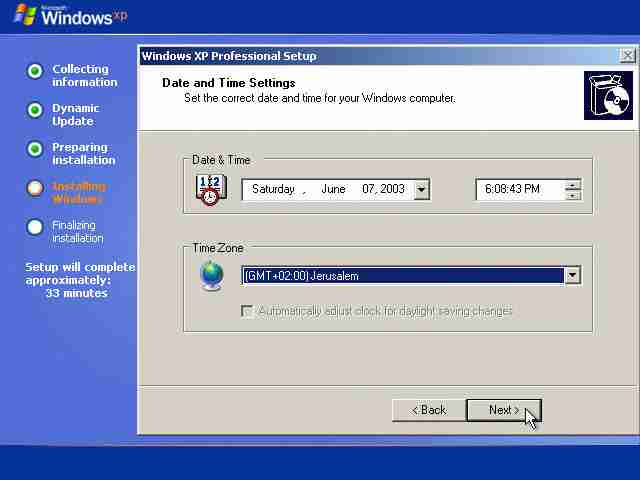
17. The next step is the network setting, select the typical box for standard settings or check the personalized box and set the network based on the type of internet connection you have.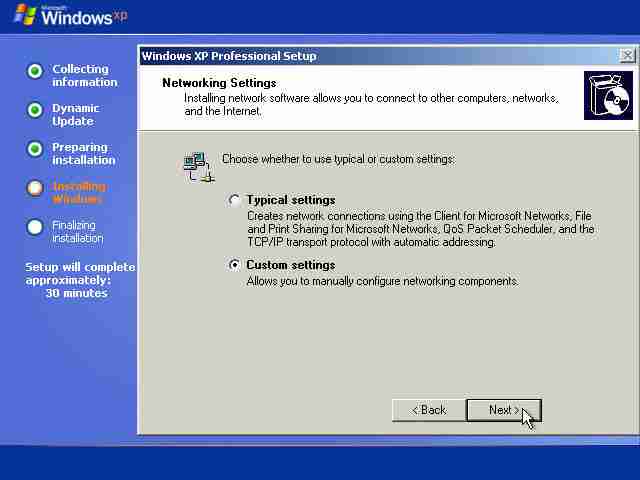 18. Set the working group based on your needs, for the usual domestic computers you can follow this step with the next button.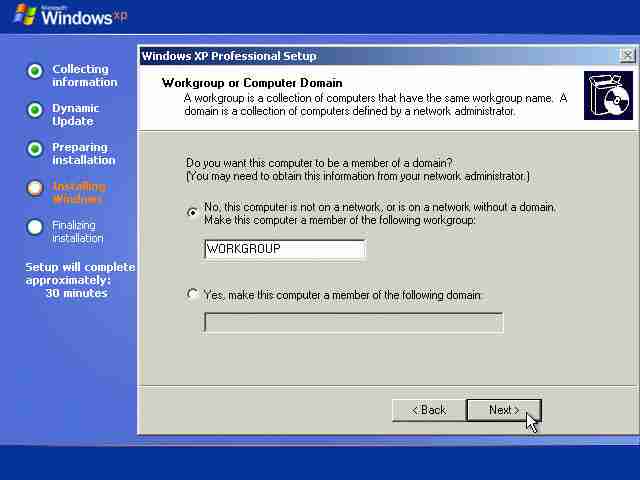
19. Now you have installed Windows and sterile will ask you if you keep the Windows resolution to go on, press OK.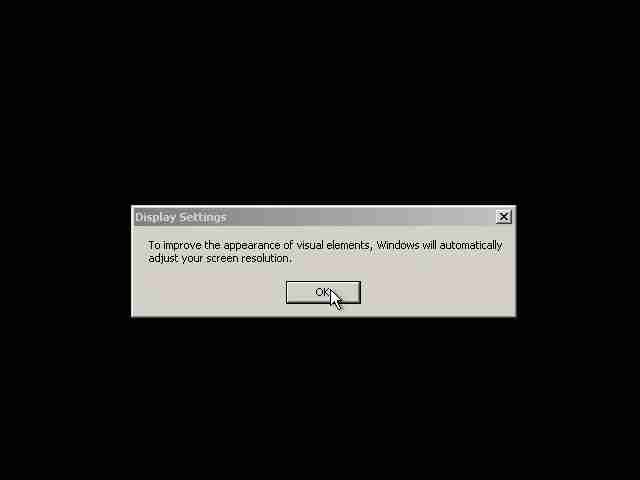
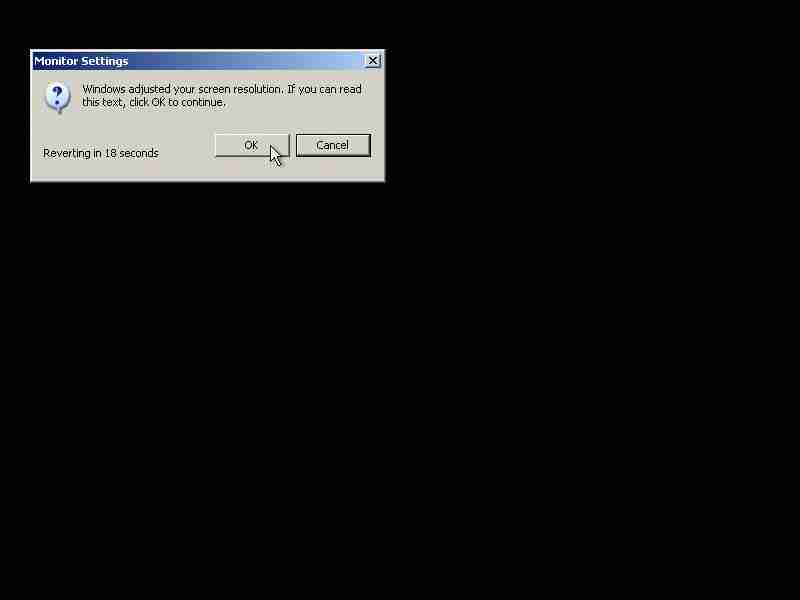
20. At this moment you don’t need CD anymore, you have installed the operating system.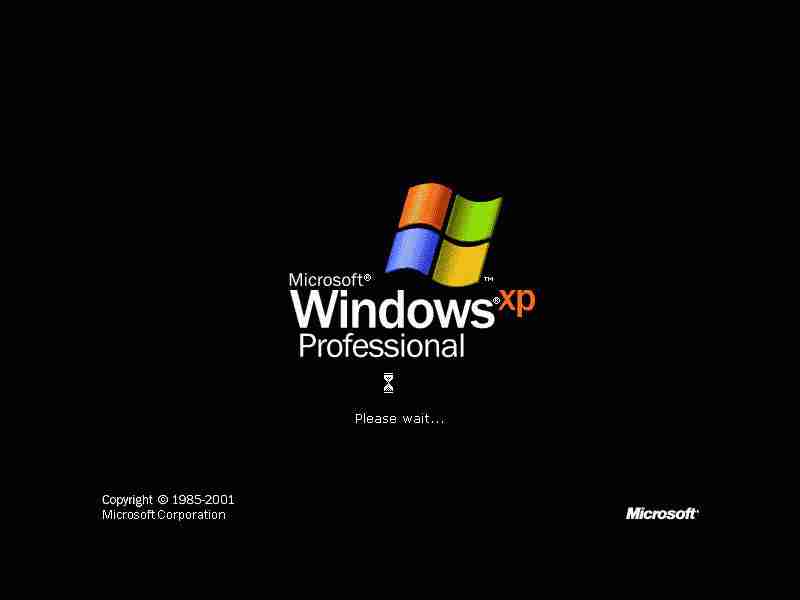
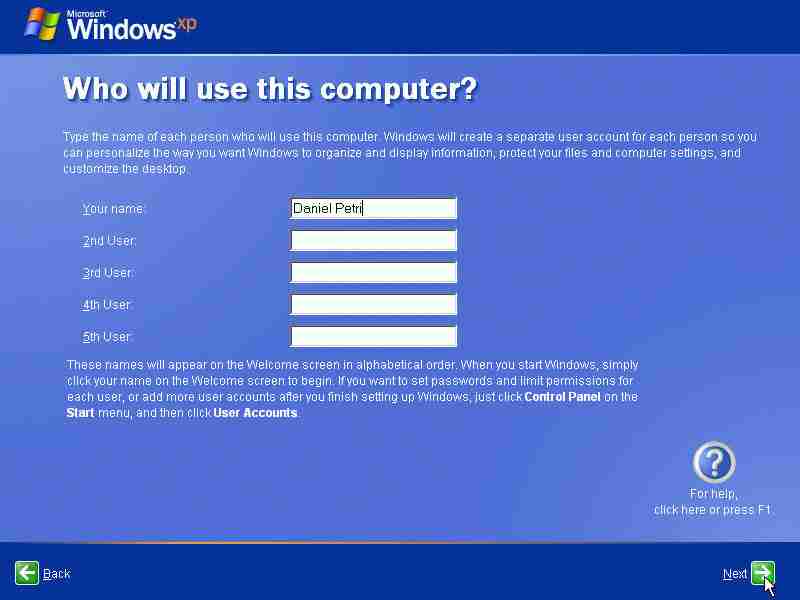
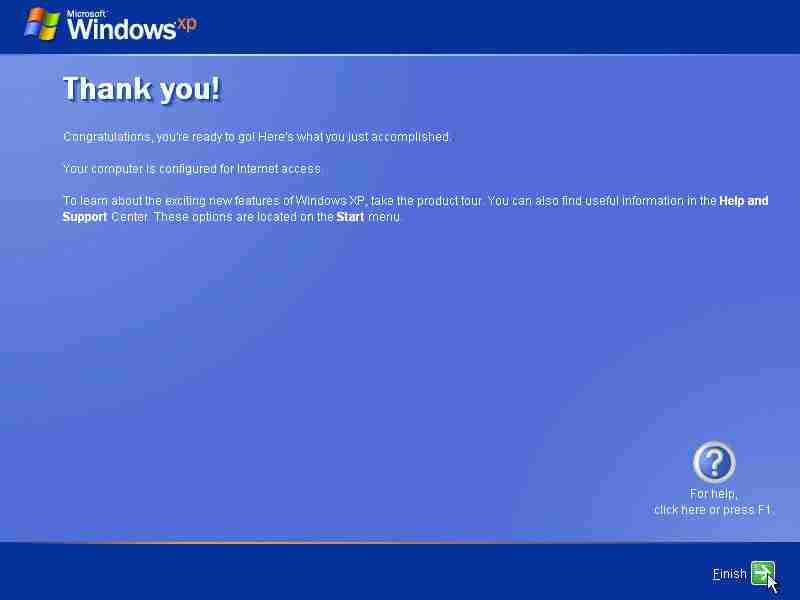
21. Now the Windows introduce you to some settings that you can pass with the next button or jump if you do not want to configure the network, the firewall and others in this menu. The only important point is to choose a name for the user of this computer.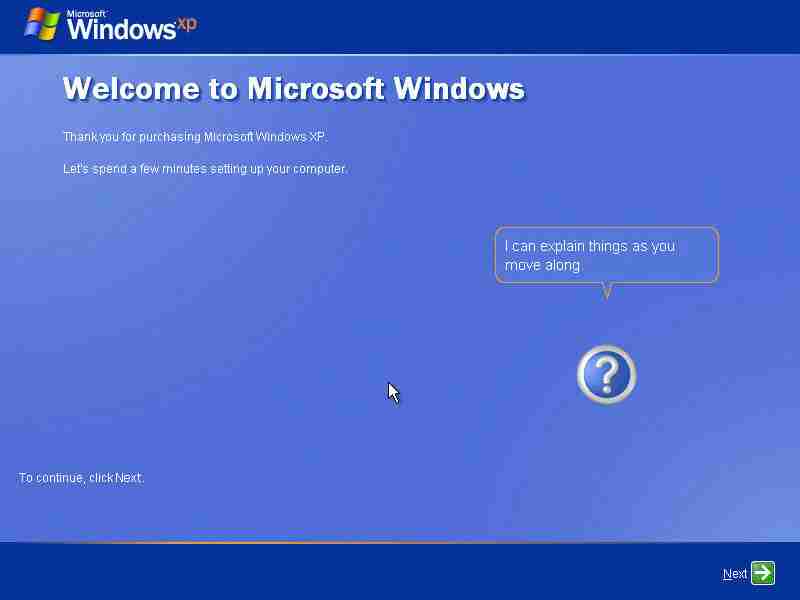
Post views:
29.923
latest posts published

Don’t know which decoration to choose for your wedding? See ideas here | Your wedding at the castle

Guide to managing your wedding budget

When does the baby’s baptism take place? Guide 2026

Choose the menu according to your budget!

Greșeli organizare nuntă – 9 Mistakes that ruin your wedding

Top 5 reasons to call a wedding specialist

Everything you need for the mystery of baptism

Civil and religious marriage documents 2026

Fun activities for a successful baptism
